Monday, February 29, 2016

Nintex New Upcoming Features

I was at Nintex Inspire X conference at Las Vegas and wanted to share some exciting stuff happening in the community. I have highlighted the new features which will be part of Office 365, So 2016 as well as 2013.


  • Scripted Install/NWADMIN PowerShell
  • Single CA Nintex Management Module
  • Will work on any modern browsers. Both forms and workflow designers
  • Help is integrated to Online help. Real and updated
  • Improved Tool box and better UI on workflows
  • Nintex Insight (Analytics UT Tool) connector OOB with WF
  • External Start (Events triggered from outside). Integration to PowerApps/Logic Apps
  • Drawloop will be available on Prem
  • Workflow Metadata which on error can call/notify (Will be available on SP 2013 forms/Also cross browsers support on Sp 2013)
  • More investments on hybrid
  • Forms for document set metadata
  • Multi page form/views
  • Saving forms and draft
  • Set default values to fields without scripts
  • Managed metadata column will be supported
Most important of all Nintex Office 365 Workflows is moving towards cloud hosted workflow engine model. Means to saw the worklflows will run outside of SharePoint environment. No more worrying about SharePoint Worklfow Limits/Throttle issues.

Wednesday, October 21, 2015

List SharePoint subsites on SharePoint page using webpart

If you would like to rollup the subsites under a SharePoint site use the below script and paste on a script editor webpart on any page.

This rollup using REST query also looks at the permission and displays site that the current logged in user has access to. You can change the URL to point to any subsite where you want to roll up the sites from.

<div id="resortslist"></div>
<script src="https://ajax.googleapis.com/ajax/libs/jquery/1.11.3/jquery.min.js"></script>
<script>

$(document).ready(function () {

    GetSubSites();

});

    // function to check contract form status
    function GetSubSites()
    {

        $.ajax(
        {
            url: _spPageContextInfo.webServerRelativeUrl +
            "/_api/web/webs/?$select=Title,Created,Description,LastItemModifiedDate,Url&$filter=effectivebasepermissions/high%20gt%2032",
            type: "GET",
            headers: {
                "accept": "application/json;odata=verbose",
            },
            success: function (data)
            {
                readContractFormSuccess(data);
            },
            error: function (err)
            {
                alert(JSON.stringify(err));
            }
        }
        );
    }

    // success function for contract form check
    readContractFormSuccess = function (data)
    {
     
        var results = data.d.results;


        if (results.length > 0) {


            var html = "<div id='resorts-site-elements'><br/>";
            html += "<table>";
            html += "<tr><td  style='padding-right:10px>Resort Name</td></tr>"
            for (var i = 0; i < results.length; i++)
            {


                var created = results[i].Created;
                var descp =results[i].Description;
             
                var sitetitle =  results[i].Title;
                var link =results[i].Url;


                html += "<tr><td style='padding-right:10px'>"
                html += "<a href='"+ link + "'>" + sitetitle + "</a>";
                html += "</td> ";
                 
                html += "</tr>";
            }
        }

        else {
            html += "<tr></td>No Sites</td></tr>";
        }

        html += "</table>";
        html += "</div>";
        $("div[id='resortslist']").html(html).show();
     
    }

 
</script>

Kickoff SharePoint 2013 Worklfows using PowerShell

Here is the script I created and used for triggering SP 2013 Worklfows. This does not work for 2010 workflows. You can schedule this script on Task Scheduler on any Machine installed with SharePoint bits

cls
if ((Get-PSSnapin "Microsoft.SharePoint.PowerShell" -ErrorAction SilentlyContinue) -eq $null)
{
    Add-PSSnapin "Microsoft.SharePoint.PowerShell"
}

$sourceWebURL = 'http://xxx.com/sites/xxx/subsite'
$sourceListName = 'TaskNotifications'
$TargetWorkflow = 'NotifyPendingTasks'
$spSourceWeb = Get-SPWeb $sourceWebURL
$spSourceList = $spSourceWeb.Lists[$sourceListName]
$items = $spSourceList.getItems()

#-- Getting a Workflow manager object to work with.
$wfm = New-object Microsoft.SharePoint.WorkflowServices.WorkflowServicesManager($spSourceweb)
#-- Getting the subscriptions
$sub = $wfm.GetWorkflowSubscriptionService()
#-- Getting the specific workflow within the list of subscriptions on the specific list. (SP2010 associated workflows basically)
$WF = $sub.EnumerateSubscriptionsByList($spSourcelist.ID) | Where-Object {$_.Name -eq "$TargetWorkflow"}
#-- Getting a Workflow instance in order to perform my commands.
$wfis=$wfm.GetWorkflowInstanceService()


Foreach($item in $items){
 
    $object = New-Object 'system.collections.generic.dictionary[string,object]'
    $object.Add("WorkflowStart", "StartWorkflow");
   $wfis.StartWorkflowOnListItem($WF, $item.ID, $object)
}

Friday, May 22, 2015

SharePoint Online Web Galleries are hidden

The probable cause can be related to deny access that got set.

Run this powershell command on the SP Online Powershell Console. May have to be downloaded

To run you should be a global or SharePoint admin on the Office 365 Portal


Monday, February 2, 2015

SharePoint Designer "failed to load this workflow" or Windows Workflow Foundation, part of .Net Framework 3.0, must be installed to use this feature.

To resolve this issue please update your designer with the hotfixes in sequence. Make sure the designer is NOT open.

http://support2.microsoft.com/hotfix/KBHotfix.aspx?kbnum=2837667&kbln=en-us

http://support2.microsoft.com/hotfix/KBHotfix.aspx?kbnum=2727100&amp;kbln=en-US

Once installation is complete open the site once again. A restart may not be necessary. If you still get the same issue then clear your designer cache by running this 

rmdir "%LOCALAPPDATA%\Microsoft\WebsiteCache\" /s /q
rmdir "%APPDATA%\Microsoft\SharePoint Designer\ProxyAssemblyCache\" /s /q


Then Restart you PC.

Wednesday, January 7, 2015

Enable site publishing feature and apply master page on SharePoint sub sites including Office 365

In this blog I will go over how to create a sandboxed event receiver which will activate the "Publishing Feature" and inherit master page from parent. (Thanks to Anvesh Kunati and Alex Mayer)

This sandboxed solution will work on SharePoint 2013 and SharePoint Online/365

Steps

1. Fire up a visual studio, if you are using VS 2012 then you may have to download Office 365 Tools for VS 2012. Create a new SharePoint 2013 projects
2. Name the solution accordingly
3. Point to the SharePoint Site(has to be a local site)later on we can copy this WSP to SharePoint Online.
4. Click on the validate and choose "Sandbox Solution" as the option
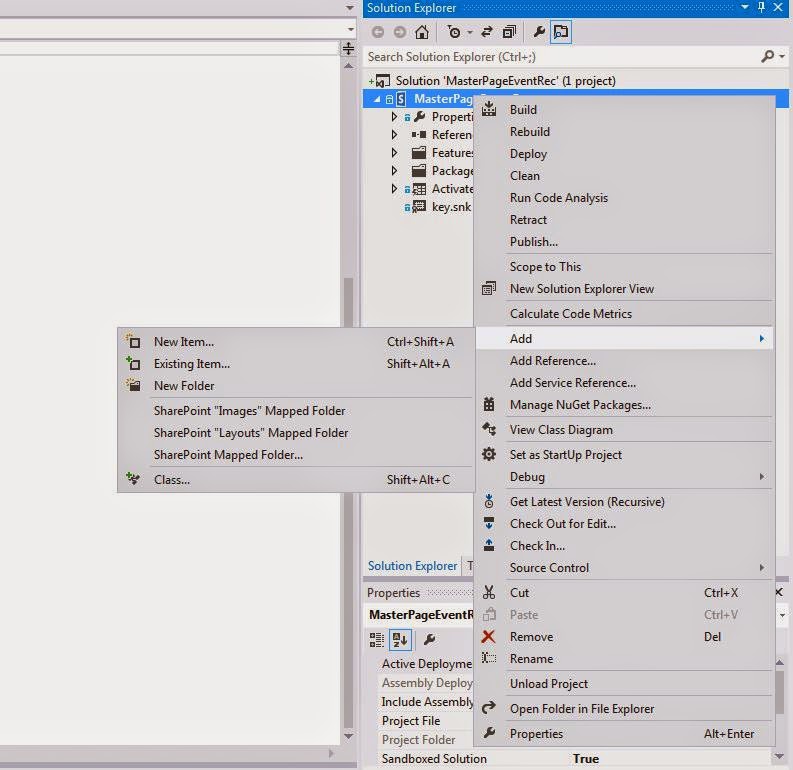
5. On the VS Project right click on the solution and add a new item choose "Event Receiver" 


6. Name it accordingly because changing it later can become frustrating.
7. From the popup choose Web Events and choose A Site was provisioned

8. In the event receiver code add the following code within public override void WebProvisioned(SPWebEventProperties properties)

 base.WebProvisioned(properties);
            SPWeb web = properties.Web;

            web.AllowUnsafeUpdates = true;
            //activating Publishing feature. If you need any other features to be activated the put those GUID's
            web.Features.Add(new Guid("{94c94ca6-b32f-4da9-a9e3-1f3d343d7ecb}"), true);
            web.Update();
            // add a description toshow that its running/to check if this worked
            // web.Description = "Feature activated log";
            //   web.Update();


            SPWeb rootWeb = web.Site.RootWeb;

            //Inherit the master and custom master page from root site
            web.MasterUrl = rootWeb.MasterUrl;
            web.CustomMasterUrl = rootWeb.CustomMasterUrl;

            //Set navigation

            web.Navigation.UseShared = true;

            web.Update();

            web.AllowUnsafeUpdates = false;

            web.Dispose();
            rootWeb.Dispose();

9. Compile/Build and deploy to the local site. In the properties make sure it is selected as sandbox solution.
10. Go to the site features and activate this new feature
11. This is a reusable solution and the WSP can be uploaded to any site collection or Office 365 SharePoint sites.. Just download the WSP from the local SharePoint site solution gallery and upload to any new site collection.

Alternatively you can also get the latest WSP by right clicking the VS solution and opening the solution in "file explorer", bin folder Debug/Release folder


Thursday, May 2, 2013

Encrypt InfoPath Fields - SharePoint 2010 Web Browser Enabled Forms

As InfoPath stores all the information in an open XML format it is easy for a little technical users to download the form to the client and read the xml and its values.

In this post I will go over How to encrypt fields in InfoPath Form and  How to upload the InfoPath Code Behind form to a form library.

For one of our requirements we had a requirement to secure or encrypt some of the compensation information that HR is to fillout on a SharePoint 2010 InfoPath Web Form/Online. Encryption of the fields help to secure the data so that when someone downloads the InfoPath 2010 form on their client what they say is encrypted data.

Just to let you know that I am just encrypting the compensation section and all fields in them. Other fields are not encrypted.

Here are the steps

  1. Create a Picture Button (rules and custom code) type and set the ID as Encrypt.
  2. Create a Picture Button (rules and custom code) type and set the ID as Decrypt.
  3. You can set the picture to these buttons if needed.
  4. Right click on the button and go to properties and click on Edit Form Code


  5. My fields in the infopath compensation area look like this 
  6. Create some extra Text fields on the form root section that we would use for the encryption purpose
  7. This is the code you need for the whole encryption and decryption to work. If you are familiar with C# then all function should be self explanatory
  8. This is the complete code in the code behind.


using Microsoft.Office.InfoPath;
using System;
using System.IO;
using System.Security.Cryptography;
using System.Text;
using System.Xml;
using System.Xml.XPath;

namespace HR_Status_Form_Codebehind
{
    public partial class FormCode
    {

        // Member variables are not supported in browser-enabled forms.
        // Instead, write and read these values from the FormState
        // dictionary using code such as the following:
        //
        // public string encryptionkey
        //{
        //     get
        //          {
        //              return FormState["encryptionkey"];
        //     }
        //     set
        //     {
        //         FormState["encryptionkey"] = "r67$f#8gyv";
        //     }
        // }

        //private string Location
        //{
        //    get
        //    {
        //        return (string)FormState["Location"];
        //    }
        //    set
        //    {
        //        FormState["Location"] = value;
        //    }
        //}

        // NOTE: The following procedure is required by Microsoft InfoPath.
        // It can be modified using Microsoft InfoPath.


        #region Security Methods
        private string EncryptField(SymmetricAlgorithm SymmetricKey, string ValueToEncrypt)
        {
            string base64enc = string.Empty;

            byte[] dataToEncrypt = Encoding.Unicode.GetBytes(ValueToEncrypt);
            MemoryStream ms = new MemoryStream();

            CryptoStream csBase64 = new CryptoStream(
                ms, new ToBase64Transform(), CryptoStreamMode.Write);
            CryptoStream csRijndael = new CryptoStream(
                csBase64, SymmetricKey.CreateEncryptor(), CryptoStreamMode.Write);

            csRijndael.Write(dataToEncrypt, 0, (int)dataToEncrypt.Length);
            csRijndael.FlushFinalBlock();

            base64enc = Encoding.ASCII.GetString(ms.GetBuffer(), 0, (int)ms.Length);

            return base64enc;
        }

        private string DecryptField(SymmetricAlgorithm SymmetricKey, string ValueToDecrypt)
        {
            string unencryptedString = string.Empty;

            byte[] dataToDecrypt = Convert.FromBase64String(ValueToDecrypt);
            MemoryStream ms = new MemoryStream();

            CryptoStream csRijndael = new CryptoStream(
                ms, SymmetricKey.CreateDecryptor(), CryptoStreamMode.Write);

            csRijndael.Write(dataToDecrypt, 0, (int)dataToDecrypt.Length);
            csRijndael.FlushFinalBlock();

            unencryptedString = Encoding.Unicode.GetString(
                ms.GetBuffer(), 0, (int)ms.Length);

            return unencryptedString;
        }

        private SymmetricAlgorithm GenerateKey()
        {
            string saltValue = "CreateYourOwn";
            SymmetricAlgorithm symmKey = new RijndaelManaged();
            byte[] saltValueBytes = Encoding.ASCII.GetBytes(saltValue);
            PasswordDeriveBytes passwordKey = new PasswordDeriveBytes("CreateYourOwn", saltValueBytes, "SHA1", 3);
            symmKey.Key = passwordKey.GetBytes(symmKey.KeySize / 8);
            symmKey.IV = passwordKey.GetBytes(symmKey.BlockSize / 8);
            return symmKey;
        }
        #endregion


        public void InternalStartup()
        {
            EventManager.FormEvents.Loading += new LoadingEventHandler(FormEvents_Loading);
            ((ButtonEvent)EventManager.ControlEvents["Encrypt"]).Clicked += new ClickedEventHandler(Encrypt_Clicked);
            ((ButtonEvent)EventManager.ControlEvents["Decrypt"]).Clicked += new ClickedEventHandler(Decrypt_Clicked);

            ((ButtonEvent)EventManager.ControlEvents["hrsubmit"]).Clicked += new ClickedEventHandler(hrsubmit_Clicked);
        }

        public void GenericFormSubmit(object sender, SubmitEventArgs e)
        {
            EncryptData();

        }
        #region private methods
        private void SetErrorMessage(string message)
        {
            XPathNavigator root = MainDataSource.CreateNavigator();
            root.SelectSingleNode("/my:myFields/my:errorMessage",
                NamespaceManager).SetValue(message);
        }


        private void ClearErrorMessage()
        {
            XPathNavigator root = MainDataSource.CreateNavigator();
            root.SelectSingleNode("/my:myFields/my:errorMessage",
                NamespaceManager).SetValue(String.Empty);
        }
        #endregion
        public void FormEvents_Loading(object sender, LoadingEventArgs e)
        {
            try
            {

                XPathNavigator root = MainDataSource.CreateNavigator();

                // Copy the XML structure for the protectedFields node with empty values
                string emptyProtectedFields = root.SelectSingleNode(
                "/my:myFields/my:Compensation", NamespaceManager).OuterXml;

                if (root.SelectSingleNode("/my:myFields/my:emptyProtectedFields", NamespaceManager).Value == string.Empty || root.SelectSingleNode("/my:myFields/my:emptyProtectedFields",
                NamespaceManager).Value == "")
                {
                    // Store the XML structure in the emptyProtectedFields node
                    root.SelectSingleNode("/my:myFields/my:emptyProtectedFields",
                    NamespaceManager).SetValue(emptyProtectedFields);
                }


            }
            catch (Exception ex)
            {
                SetErrorMessage(ex.Message);
            }

        }

        public void ClearCompensationInformation()
        {

            XPathNavigator root = MainDataSource.CreateNavigator();
            string emptyProtectedFields = root.SelectSingleNode(
                   "/my:myFields/my:emptyProtectedFields", NamespaceManager).Value;

            XPathNavigator container = root.SelectSingleNode(
            "//my:Compensation", NamespaceManager);
            container.ReplaceSelf(emptyProtectedFields);

        }


        public void Encrypt_Clicked(object sender, ClickedEventArgs e)
        {
            try
            {
                EncryptData();

            }
            catch (Exception ex)
            {
                SetErrorMessage(ex.Message);
            }
        }
        public void EncryptData()
        {

            try
            {
                ClearErrorMessage();

                XPathNavigator root = MainDataSource.CreateNavigator();

                // Generate the encryption
                SymmetricAlgorithm symmKey = GenerateKey();

                // Retrieve and encrypt the sensitive fields
                string dataToEncrypt = root.SelectSingleNode("/my:myFields/my:Compensation", NamespaceManager).OuterXml;
                root.SelectSingleNode("/my:myFields/my:encryptedData", NamespaceManager).SetValue(EncryptField(symmKey, dataToEncrypt));

                // Encrypt the isLocked field
                root.SelectSingleNode("/my:myFields/my:isLocked",
                NamespaceManager).SetValue("locked");

                // root.SelectSingleNode("/my:myFields/my:Compensation/my:salery",
                // NamespaceManager).SetValue("0");

                // root.SelectSingleNode("/my:myFields/my:Compensation/my:hourly",
                //NamespaceManager).SetValue("0");
                // Do not save the password; empty the password field
                //  root.SelectSingleNode("/my:myFields/my:password",
                // NamespaceManager).SetValue(String.Empty);

                // Empty the protected fields node
                string emptyProtectedFields = root.SelectSingleNode(
                "/my:myFields/my:emptyProtectedFields", NamespaceManager).Value;

                XPathNavigator container = root.SelectSingleNode(
                "//my:Compensation", NamespaceManager);
                container.ReplaceSelf(emptyProtectedFields);

                SetErrorMessage("Compensation information is encrypted! Please click the unlock button to view the information");
            }
            catch (Exception ex)
            {
                SetErrorMessage(ex.Message);
            }

        }
        public void ShowDecryptedData()
        {

            try
            {
                ClearErrorMessage();

                XPathNavigator root = MainDataSource.CreateNavigator();

                // Retrieve the password entered by the user and generate a key

                SymmetricAlgorithm symmKey = GenerateKey();

                // Retrieve the encrypted data
                string encryptedData = root.SelectSingleNode(
                "/my:myFields/my:encryptedData", NamespaceManager).Value;

                // Try to decrypt the data
                string decryptedData = DecryptField(symmKey, encryptedData);

                // Put the decrypted data in the protectedFields node
                XPathNavigator container = root.SelectSingleNode(
                "//my:Compensation", NamespaceManager);
                container.ReplaceSelf(decryptedData);

                // Empty the isLocked and password fields
                root.SelectSingleNode("/my:myFields/my:isLocked",
                NamespaceManager).SetValue("unlocked");
                SetErrorMessage("The data is now decrypted. It is advised to encrypt it info before submitting the form. ");
            }
            catch (CryptographicException ex)
            {
                //string msg = "Either the password you entered is incorrect ";
                //msg += "or you are not authorized to view the protected data.";
                SetErrorMessage(ex.Message);
            }
            catch (Exception ex)
            {
                string msg = "The InfoPath form has been tampered with; ";
                msg += "cannot unprotect the data.";
                SetErrorMessage(msg + ex.Message);
            }


        }


        public void Decrypt_Clicked(object sender, ClickedEventArgs e)
        {
            ShowDecryptedData();
        }


        public void hrsubmit_Clicked(object sender, ClickedEventArgs e)
        {
            // Write your code here.
        }
    }
}

NEXT STEPS TO PUBLISH THE FORM TO A SHAREPOINT FORMS LIBRARY AS ADMIN APPROVED FORM

First for the code behind forms to work you need to create this forms as admin approved form that will be uploaded to SharePoint CA(Central Admin).
To the InfoPath Form that has code Behind go to File and Form Options and go to Security and set a valid certificate and set to full trusted forms
Go to File on InfoPath and Publish - SharePoint Server and choose the form library you like to deploy it to and choose the following to make it admin approved
 Choose a local path where you want to store this template for uploading to CA
Finish the deployment.
Next Go to CA- General Application Settings and InfoPath Forms Service--Upload a form.
Choose the form that you saved in the publishing wizard local path. 
Upload the form
Then to the the form templates where the form got uploaded on CA, and choose the form click on that small dropdown icon and say activate in a site collection.
Choose the site collection where this form is going to be part of and hit activate in this site collection.
Now if you go back to the site collection where you activated you should see a new feature available.
Go ahead and activate that new feature which is usually named same as the form
Now Go the Form Library(This is the Site where you uploaded the form as a template).
Advanced settings on the Forms library and Say.
Allow management of content types.
Go to Form Library Settings and say Add An existing Content Type
Choose this new form/feature you just uploaded
You can set this new content type as default as seen in the above picture.

ALL SET TO ROCK NOW.